

Create a new Form2SMS
-
Sign into your Form2SMS account.
-
On your dashboard, add a new form with the New button.
-
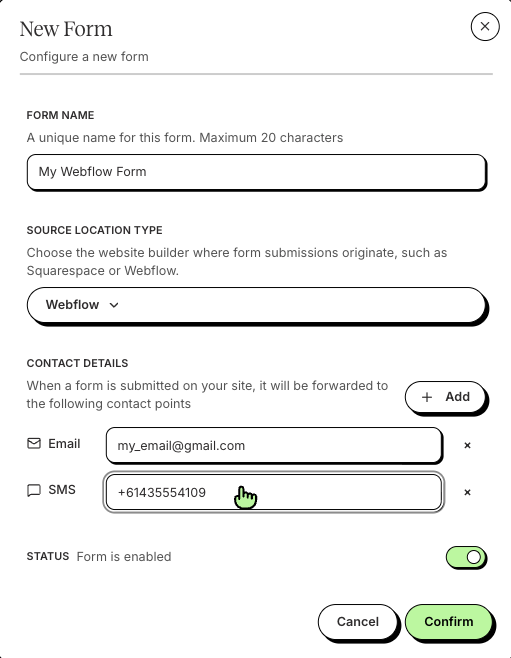
Enter your form details. For the Source Location Type, select Webflow. Be sure to add your phone numbers and email addresses in the Contact Details section. When ready, click Confirm.
-
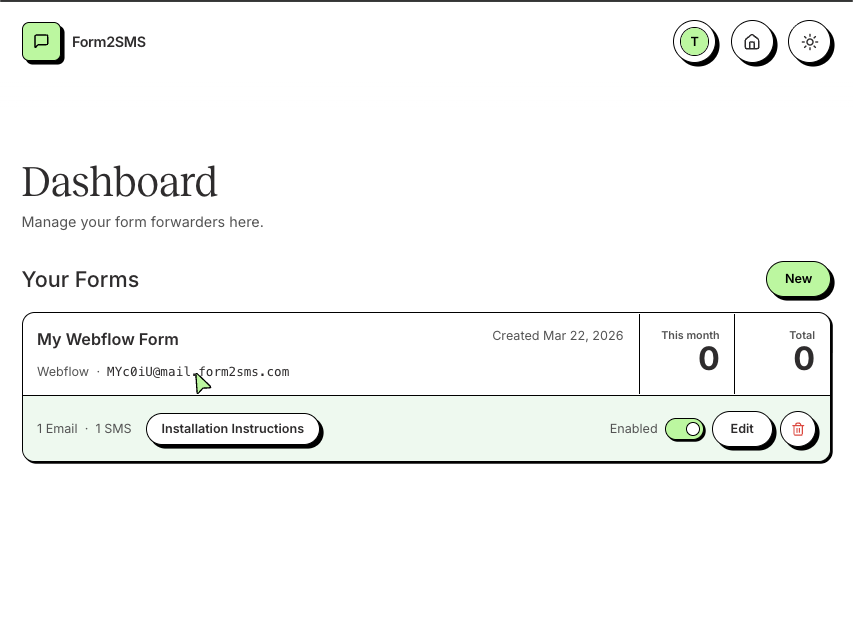
On your dashboard, click on your new unique email address for your form. Copy this for the next part.
Add to Webflow
-
Sign in to your Webflow account.
-
For your website, enter the Webflow Designer and navigate to the page containing your form.
-
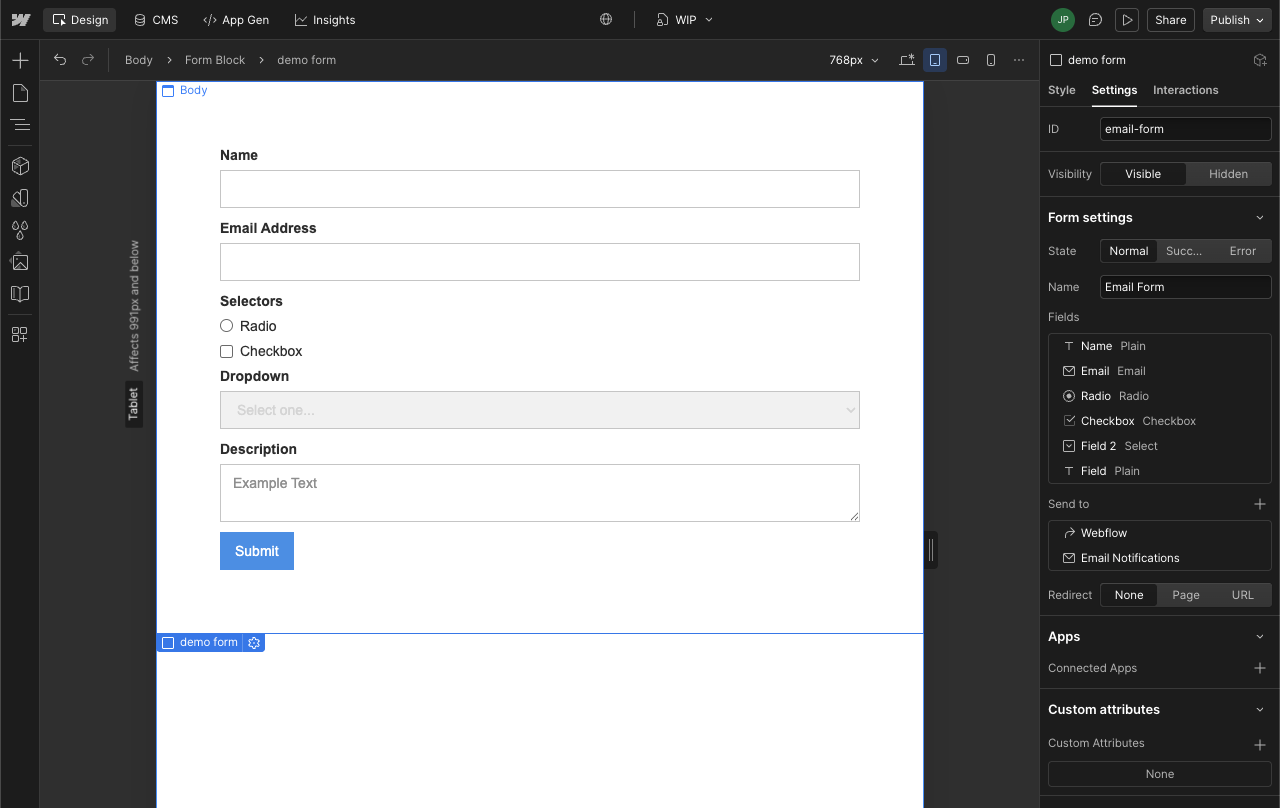
Select your form block, either using the Navigator or canvas.
-
With your form block selected, under the Send to options, add or edit Email Notifications.
-
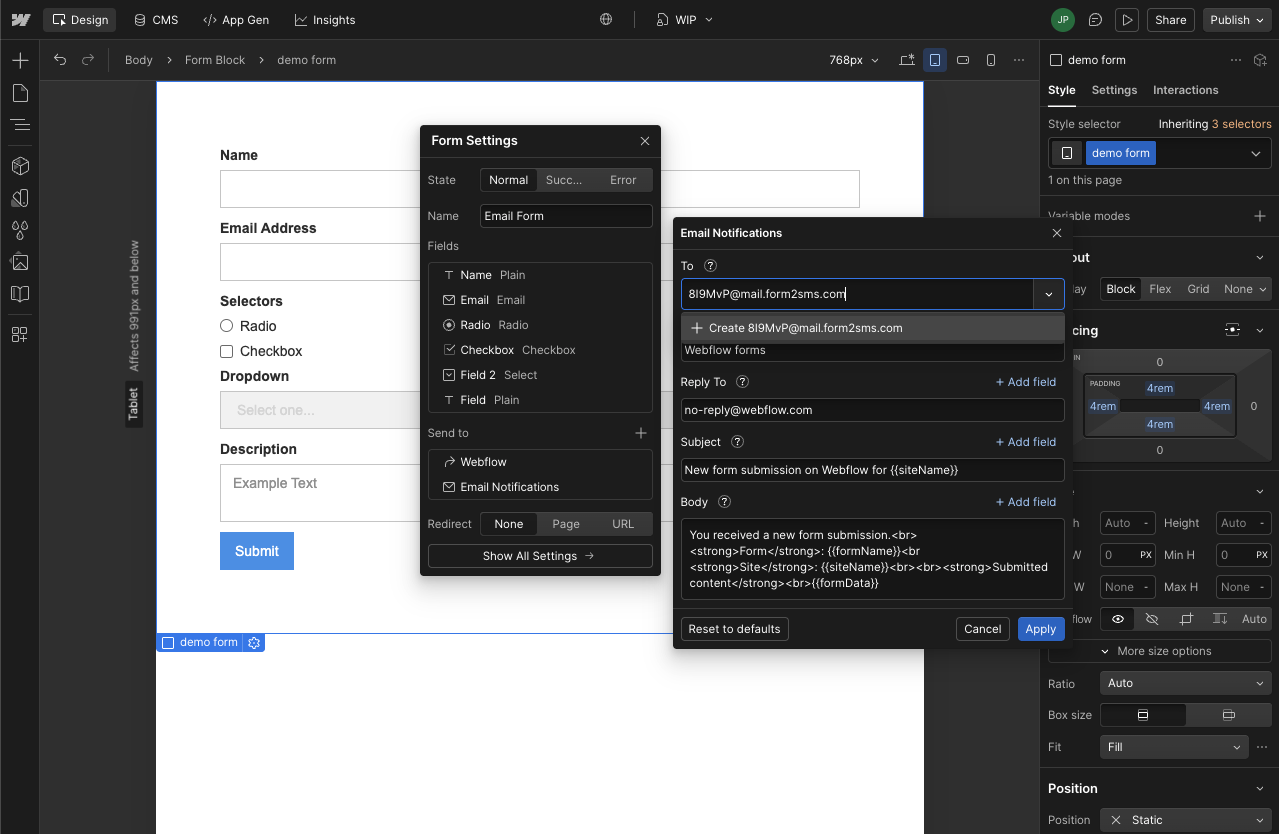
Add your Form2SMS email to the To field.
-
Optional: add the following contents to the Body field. This helps Form2SMS format your SMS messages, though is not required.
-
Apply and Publish your website for the change to take effect.
Test!
With your Webflow website published, test the changes by navigating to your website and submitting a form. You should receive an SMS on submission. In the Form2SMS Dashboard, you can see how many submissions you have received.
Hot tip: View your form's Events page to see each submission and the destinations they were delivered to!